
 CP Staff
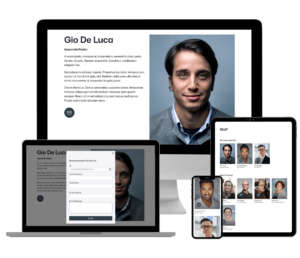
Simple and powerful staff management, with templates to display your staff and contact forms that keep email addresses private.

What CP Staff does
Show your team and let people reach them.
Show your team
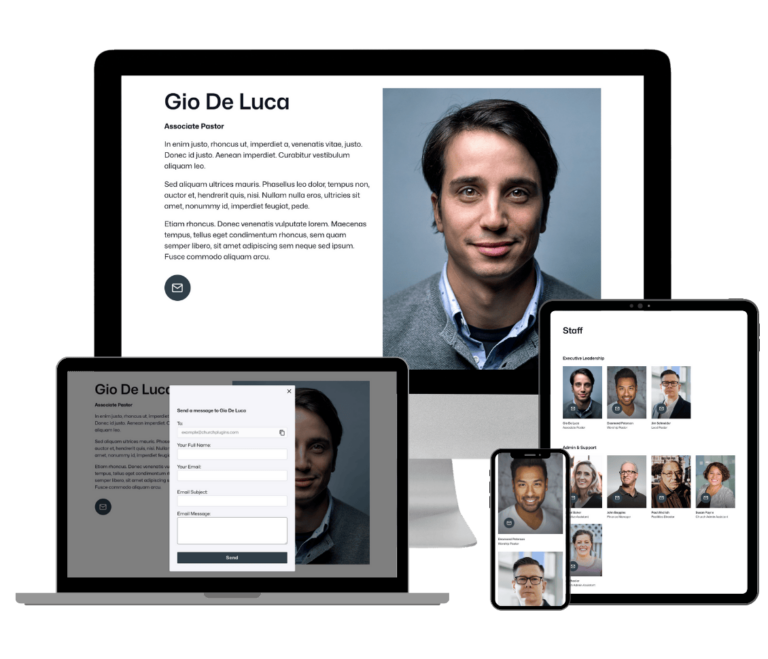
Your whole team, on your site
- Staff profiles A profile for each staff member, with photo, title, email, phone and social links.
- Departments Assign staff members to departments.
- Staff on any page Show all staff or one department with one shortcode.
- Easy to customize Match your colors, spacing and fonts.
Contact forms
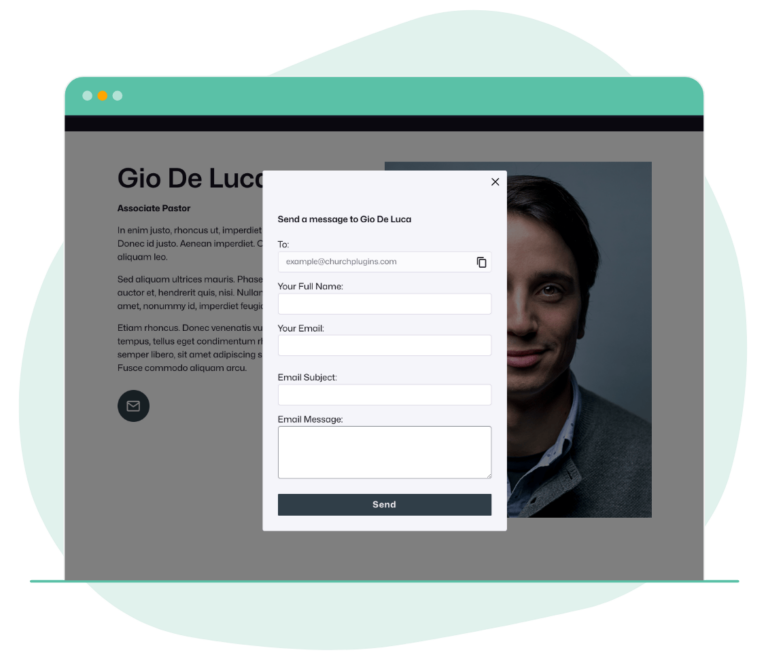
Contact forms that stop spam
- Contact staff directly A contact form on each staff member.
- Emails stay hidden Email addresses aren't shown on the page.
- Optional reCAPTCHA Helps prevent spam submissions.
“The layout designs are clean and appealing for sermons, staff and groups. We made a great choice going with Church Plugins.”
Works with
Check these before you buy. If something you use isn't listed, ask us a question before you buy. Every plan has a 30-day full refund.
Version
- Current version 1.2.1 · Changelog
Works with
Services
- Google reCAPTCHA on the staff contact form
Choose your plan
30-day full refund on every plan.
-
Recommended
Yearly
Renews every year for updates and support.
-
Lifetime
One payment. The license key never expires.
Prices are in USD. Yearly licenses renew automatically to keep updates and support active. Lifetime licenses don’t renew. Terms
All Access Pass
Need more than one plugin? Get all 6 plugins, plus every plugin we release in the future, under one license.
$249 / year ($183 less than buying all 6 yearly)
Questions about CP Staff
Can I allow users to message Staff members?
Yes. You can enable the Staff contact form. When a user clicks on a staff profile, it will open a contact form. Optionally choose to display the Staff email address.
How do I modify the templates?
You can overwrite the existing templates by copying any template to a cp-staff directory in your theme.
We are working on an advanced template builder that will allow you to control your templates and create shortcodes right from your admin dashboard!
What happens when my license expires?
The plugin keeps working on your site. Updates need an active license key, so your site won't get new versions while the license is expired. Yearly plans renew automatically to keep the license active. Lifetime licenses don't expire.
Where do I find my license key and how do I activate it?
Your license key is on the Licenses tab in My Account, and the plugin zip is on the Downloads tab. In WordPress, go to Staff → Settings → License, paste the key and click Activate. The active key is what delivers plugin updates to your site. See activating your license.